Installing the Godot SDK
This article will walk you through installing the Skillz SDK in your Godot project.
The Skillz SDK for Godot ships starting with Skillz SDK version 2026.0.311. Earlier SDK versions have no Godot package, so these Godot pages only appear in the documentation for 2026.0.311 and later.
The Skillz SDK for Godot is a standard Godot 4 addon. Your game code talks to a typed GDScript facade (Skillz), which forwards to a GDExtension core and, on each platform, to the same native Skillz SDK that Unity games use. Nothing is compiled on your side: the addon ships the prebuilt native libraries and the Android plugin, and an export plugin wires up the Android and iOS projects at export time.
1. Download Skillz SDK
The latest version of the Skillz SDK for Godot can be found in the Downloads section of the Skillz Developer Console, or can be downloaded when creating a new game in the Skillz Developer Console with Godot selected as the engine.
The download is a zip named skillz_godot_sdk-<SDK_VERSION>.zip, where SDK_VERSION is the version of the Skillz SDK that was downloaded. At its root it contains addons/skillz/, which is the addon and all a game needs, alongside source/ (the source of the native bridges and their tests), docs/, a README.md, the licence and third-party notices, and a software bill of materials. Only addons/skillz/ goes into your project.
2. Add the Addon to Your Project
Unzip the package somewhere outside your project and copy its addons/skillz/ folder into your project so that the addon lands at res://addons/skillz/. If your project has no addons/ folder yet, create it. Leave the package's source/ and docs/ folders out of the project.
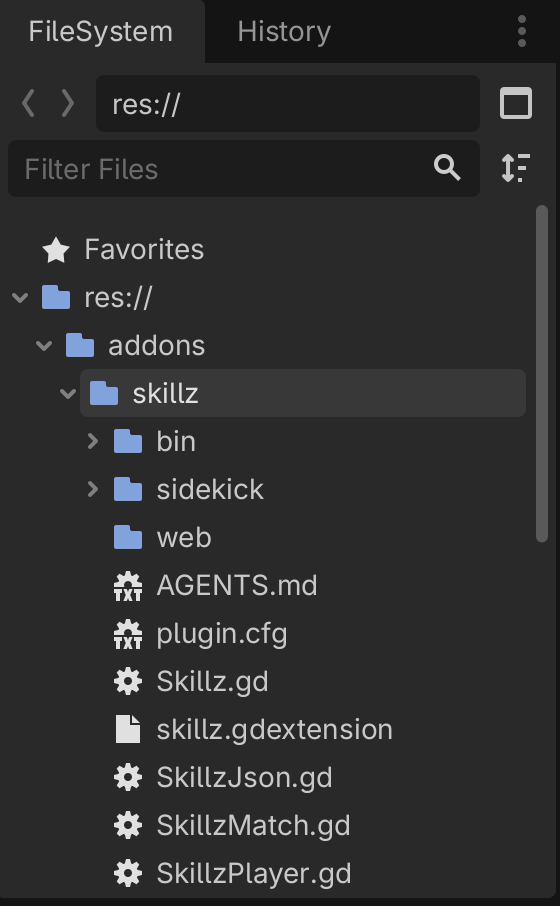
After unzipping, your project tree contains:
addons/skillz/
  Skillz.gd                 # the facade your game calls
  SkillzMatch.gd            # typed match model
  skillz.gdextension        # native core
  skillz_export.gd          # export plugin (editor only)
  sidekick/                 # in-editor simulator (see Skillz SIDEkick)
  web/                      # web shell and bridge
  bin/                      # prebuilt native libraries and AARs
  AGENTS.md                 # the full integration guide that ships with the SDK
Do not edit anything under addons/skillz/bin/. Those are prebuilt binaries that come from the Skillz package build, not source you maintain. An SDK upgrade replaces the whole addons/skillz/ folder, so keep your own files outside it.
3. Enable the Plugin
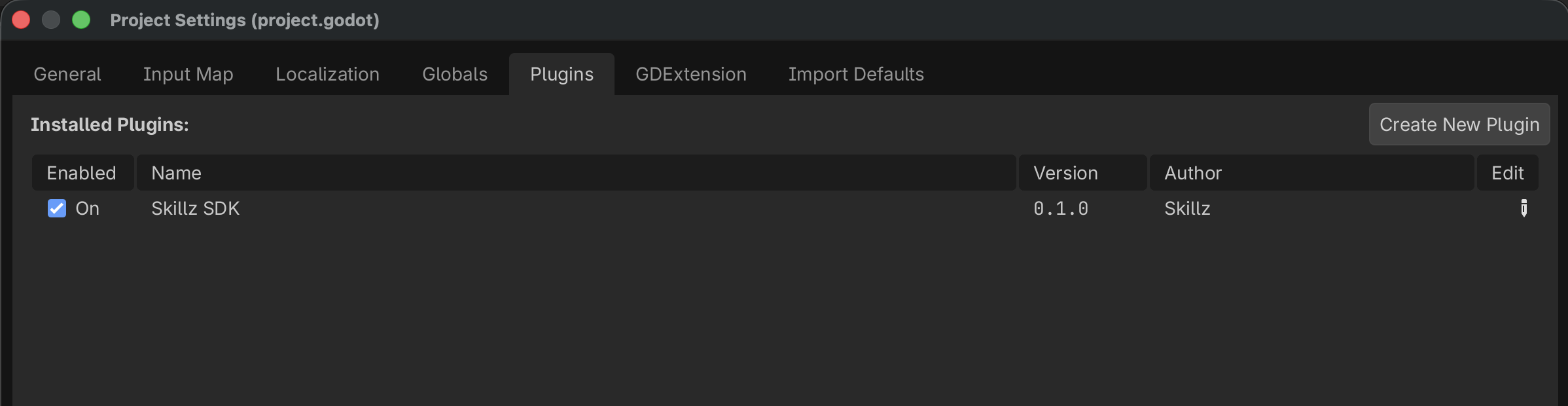
With your project open in Godot, open Project > Project Settings, select the Plugins tab, and enable Skillz SDK.
Enabling the plugin registers the Skillz autoload, the skillz/* project settings described in the next step, the export plugin, and the Skillz SIDEkick dock on the right of the editor.
4. Exclude the Editor-Only Scripts from Exports
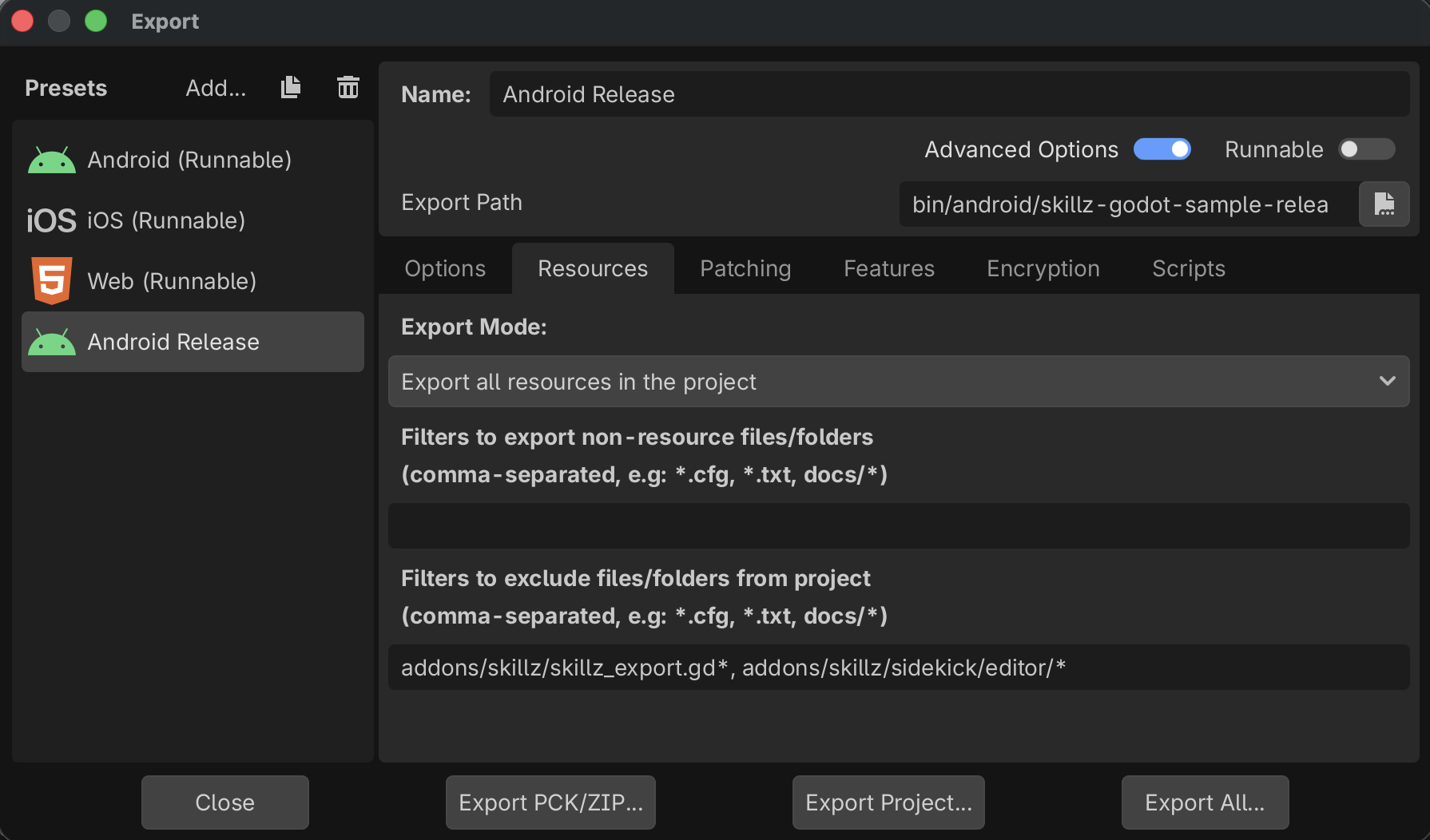
Two scripts in the addon exist only for the editor: the export plugin (skillz_export.gd) and the SIDEkick dock (sidekick/editor/SkillzSidekickDock.gd). Godot exports every script in the project and an addon cannot exclude its own scripts, so add this filter to every export preset under Resources > Filters to exclude files/folders:
addons/skillz/skillz_export.gd*, addons/skillz/sidekick/editor/*
Every export checks for this filter and logs [SkillzSDK] ... will ship the SDK's editor-only scripts when it is missing. The export still succeeds; the scripts are only dead weight in the binary.
Exclude only those two entries. The rest of sidekick/ must stay in the export: it is the simulator backend that desktop QA builds run when they carry the skillz_sim feature tag.
5. Set the Required Project Settings
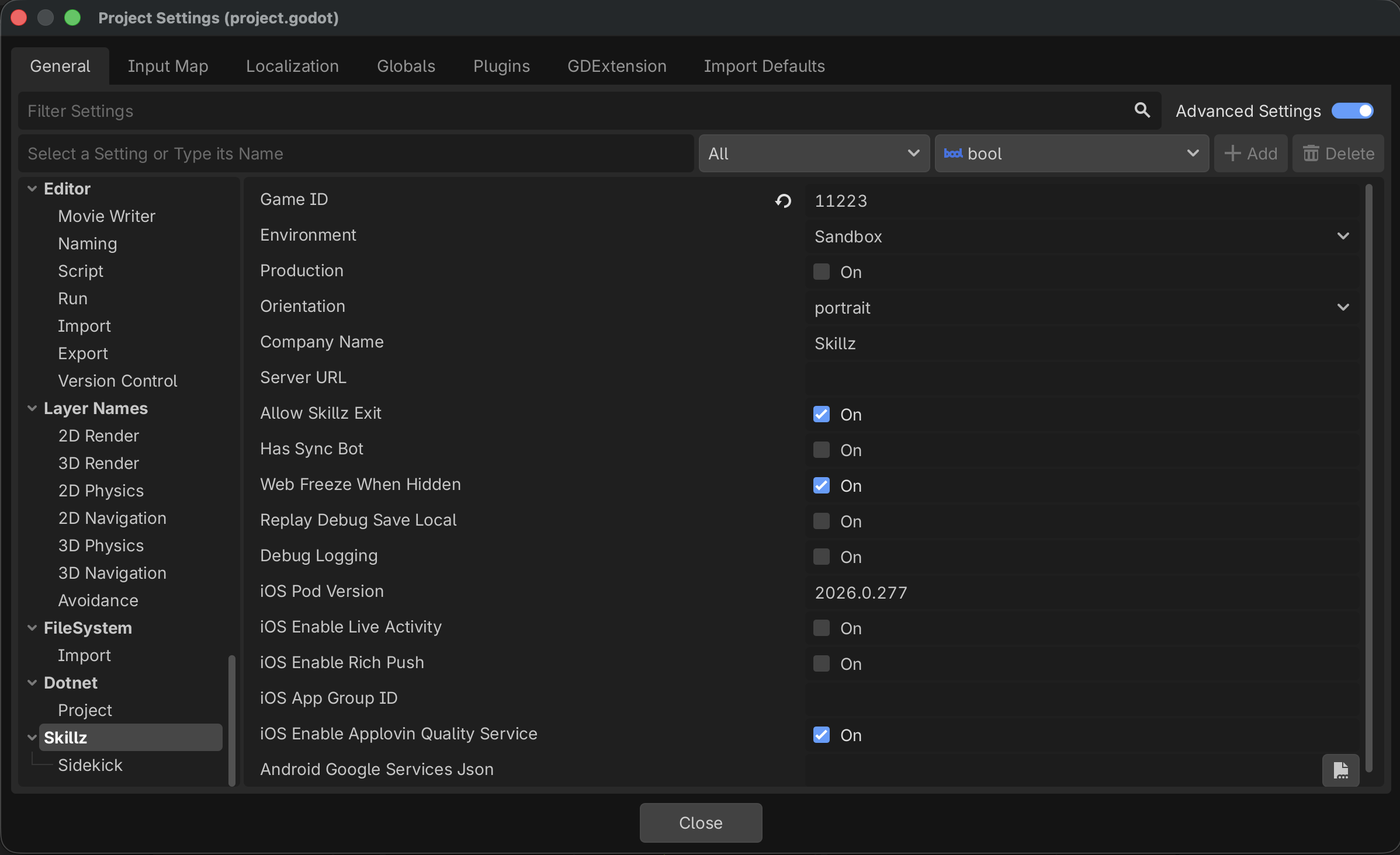
The plugin adds a Skillz section to Project > Project Settings. Three settings are required before the SDK will launch:
| Setting | Required | Meaning |
|---|---|---|
skillz/game_id | Yes | Your Skillz game ID from the Developer Console. The SDK refuses to launch without it and logs an error. The same ID is used for Sandbox and Production. |
skillz/environment | Yes | Sandbox (default) or Production. Use Sandbox for all of your own development and testing; switch to Production only when preparing a build for the stores. |
skillz/orientation | Yes | portrait or landscape. Make sure it agrees with Display > Window > Handheld > Orientation; the SDK does not cross-check the two. |
These are stored in project.godot under a [skillz] section, so you can also set them there directly:
[skillz]

game_id="YOUR_GAME_ID"
environment="Sandbox"
orientation="portrait"
The remaining settings (push notifications, iOS opt-ins, debug logging, SIDEkick) are optional and are covered in Building to Mobile - Godot.
The Skillz SDK is now installed in your Godot project. You should see addons/skillz/ in the FileSystem dock and a Skillz SIDEkick panel in the right dock. Next, launch the Skillz UI from your game, or try the integration in the editor first with Skillz SIDEkick for Godot.