Building to Mobile - Godot
This article will walk you through building your Skillz Godot project to Android and iOS.
Most of the platform wiring that a Unity integration does by hand is done for you by the Skillz export plugin that ships in the addon: it runs on every export, injects the Skillz native SDK and its dependencies, and writes the manifest and Xcode project settings the SDK needs. The steps below are the ones that remain on your side.
1. Configure Game for Skillz
Open Project > Project Settings > Skillz and check the three settings from the install guide:
skillz/game_id: your Skillz game ID.skillz/environment:SandboxorProduction.skillz/orientation:portraitorlandscape.
Select environment Sandbox for development and testing. Come back here and switch to Production when readying the build for publishing to the app stores. The same game ID is used in both; you do not get, or need, a separate ID to test.
Please ensure to select the correct orientation if you plan to distribute your game on Android. This setting is important for ensuring your game renders in the correct orientation for gameplay. For instance, if the scene for your main menu is designed for Portrait mode, but your game scene is designed for Landscape, the orientation setting should be set to Landscape.
Additionally, you can choose if users are allowed to exit the Skillz UI via its sidebar menu with skillz/allow_skillz_exit (true by default).
Which environment should I test in?
skillz/environment | Setup required | Who has access |
|---|---|---|
| Sandbox | None. Build and run with your game ID. | Every studio. Use it for day-to-day development and QA. |
| Production | Upload your build to the Skillz Developer Console; Skillz Developer Success must then enable that binary before it can talk to Production. | Every studio, when validating a real-money build. |
Whatever you pick, the build tells you: the export log prints skillz/environment=... -> skillz_production=..., and on device the log prints Skillz environment: <name> (<url>) at startup, from what the SDK itself resolved.
The export guard
Each Android export preset gets two options of its own under SkillzSDK in the export dialog:
| Preset option | Meaning |
|---|---|
skillz/environment | Project default, or pin this preset to Sandbox or Production. |
skillz/export_guard_override | false by default. The only way past the guard below; every export that uses it logs EXPORT GUARD OVERRIDDEN. |
The guard runs before a binary exists and blocks a release export whose environment is not Production, and a Production build with debug baggage (a debug export, or skillz/replay_debug_save_local=true). A blocked export prints [SkillzSDK] EXPORT BLOCKED: <reason> and fails in Gradle, so there is no half-built APK to pick up by mistake. For a signed QA build against Sandbox, set skillz/export_guard_override on that preset.
2. Platform Setup
- Android
- iOS
Install the Android Build Template
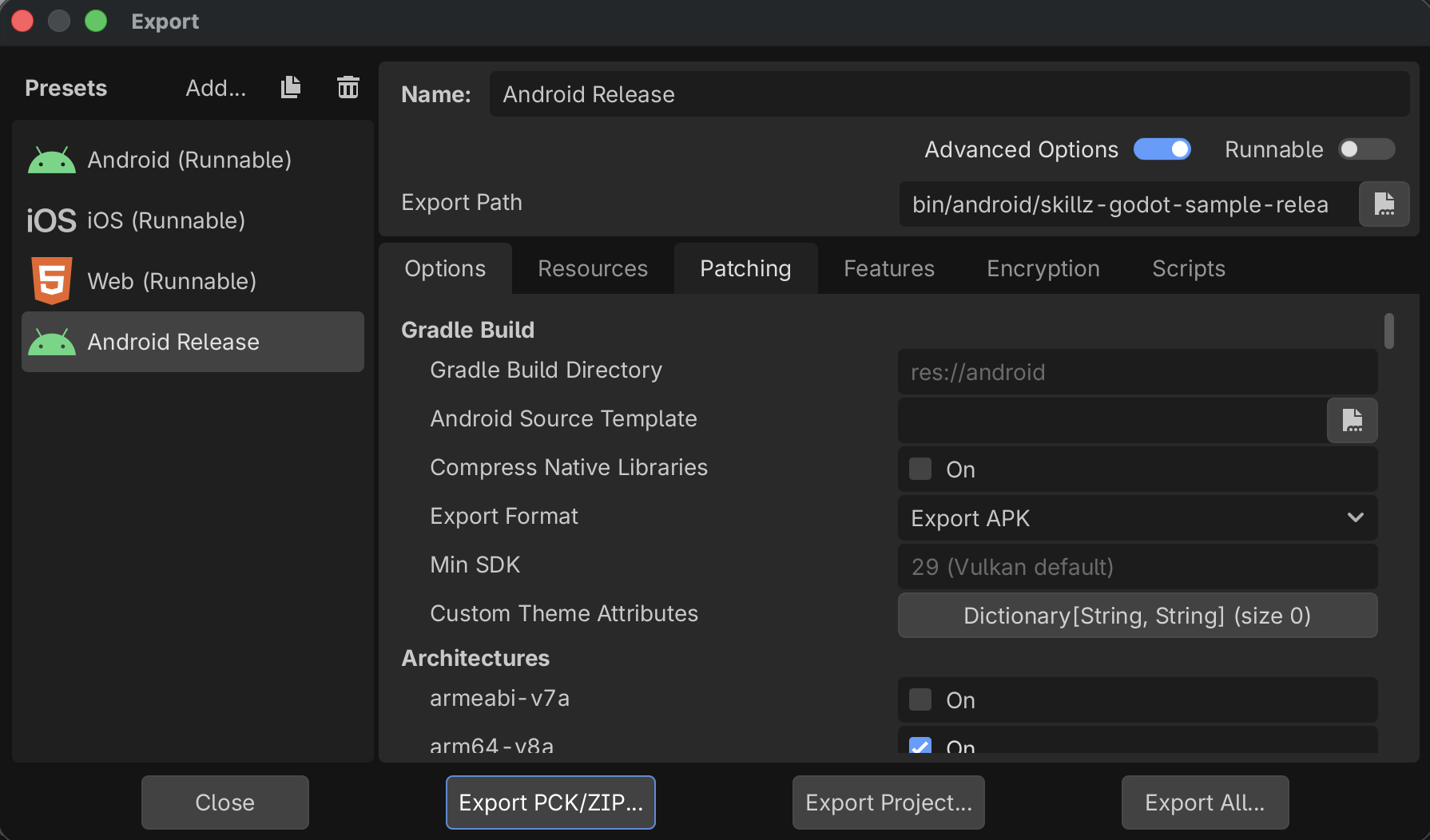
Select Project > Install Android Build Template. This creates android/build/ in your project. The Skillz SDK arrives as Gradle dependencies, so Godot's prebuilt APK templates cannot be used; the export plugin forces Gradle Build > Use Gradle Build on for every Android preset. Because the plugin supplies that value (and the target SDK) itself, the two rows are not shown in the preset's Gradle Build section: there is nothing to switch on, and nothing you can switch off.
The first Gradle build downloads the dependency tree and takes several minutes. Three Maven repositories must be reachable from the build machine: https://nexus.skillz.com/content/groups/public/, https://maven.singular.net/ and https://jitpack.io. The export adds them to your Gradle build.
What the export plugin injects
You do not edit android/build/ by hand. On every export the plugin:
- Adds the Skillz Android plugin AAR and the
com.skillz.sdk:skillz-sdk-androiddependency at the version the package was built against (pinned inaddons/skillz/SKILLZ_ANDROID_SDK_VERSION; do not edit it). - Appends a marked block to
android/build/build.gradlewith the dependency exclusions and packaging options the SDK's dependency tree needs. If you reinstall the build template, the block is re-applied on the next export. - Writes the Skillz manifest meta-data from your project settings: game ID, environment, orientation, the Skillz activity hand-off, and push configuration.
- Pins
gradle_build/target_sdkto 34 (see below).
Package Name
The preset's Package > Unique Name must be the application ID registered for your game in the Skillz Developer Console, because the APK fingerprint is registered against it. If you use push notifications it must also be the package name of the Android app in your Firebase google-services.json.
minSdk is 24. Ship arm64-v8a; armeabi-v7a and x86_64 are available in the package if you need them.
Target SDK 34
The export plugin sets the target SDK to 34 on every Android preset and ignores a higher value. The Skillz SDK's GeoComply client rejects any app that targets a higher API level, and the failure is silent: the app installs and runs, free tournaments play, but a cash tournament never starts. The pin lifts with a future Skillz SDK release that ships a newer GeoComply client; until then do not raise it.
Since 31 August 2026 Google Play requires new apps and app updates to target API 36, so a build at target 34 cannot currently be submitted to or updated on Google Play. That is an SDK dependency, not something to work around in your preset: a build above 34 installs and then silently cannot start a cash tournament.
Push Notifications
To enable Skillz push notifications on Android, set skillz/android_google_services_json to the path of your Firebase google-services.json (for example res://google-services.json). Leave it empty and push is off; nothing else depends on it. See Push Notifications for the Firebase project setup.
Release Signing
Supply the release keystore through the preset's Keystore > Release fields, or through the GODOT_ANDROID_KEYSTORE_RELEASE_PATH, GODOT_ANDROID_KEYSTORE_RELEASE_USER and GODOT_ANDROID_KEYSTORE_RELEASE_PASSWORD environment variables. When those variables are set, Godot uses them instead of the preset fields, even if the fields are filled in; so on a machine or CI job that should sign with the key in the preset, make sure the variables are unset, or a stale environment signs the build with a different key than the preset shows. A release export signed with a debug key fails the Skillz integrity checks.
R8 / ProGuard
Godot's stock build template does not enable R8, so most games never minify. If yours does, you need no Skillz rules: the Skillz AAR embeds its consumer rules. Two rules belong in your own android/build/proguard-rules.pro because they concern the engine and the build, not Skillz; they are listed in the AGENTS.md that ships in the addon under "R8 / ProGuard".
Export the Xcode Project
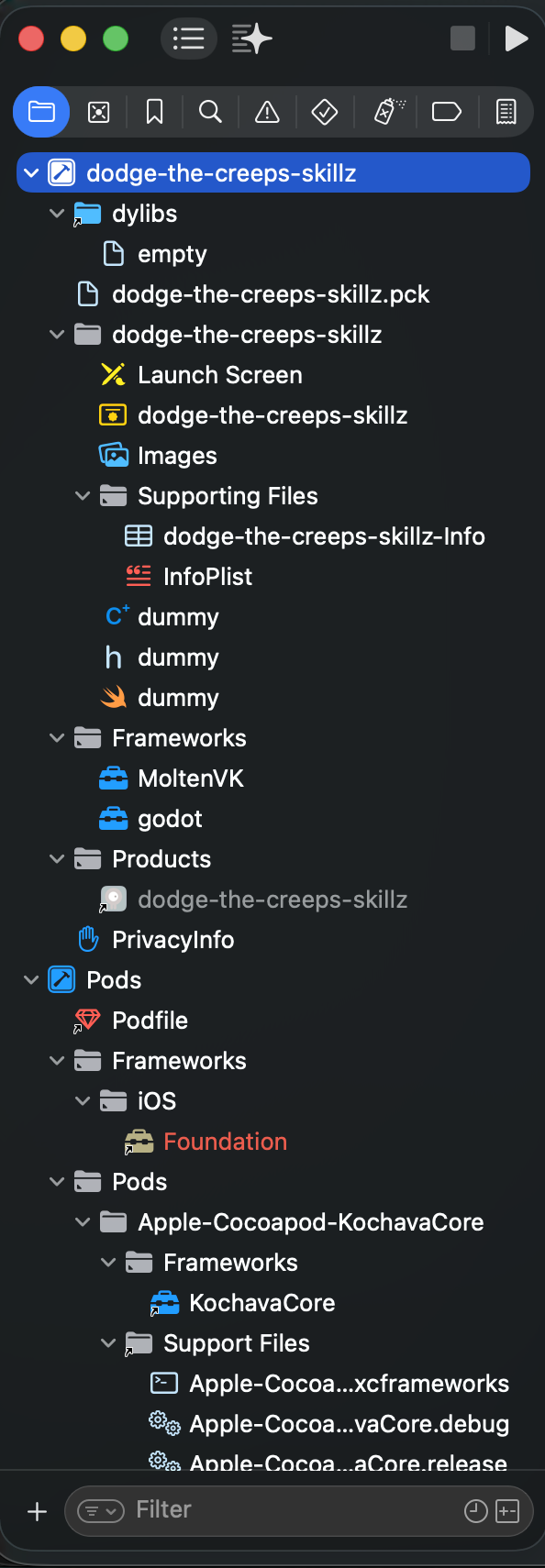
Export your iOS preset as usual. Godot regenerates the Xcode project from scratch on every export, which would wipe any CocoaPods integration and linker customization, so the Skillz export plugin re-applies everything it needs on every export: the Skillz framework linking and linker order, the GeoComply framework, the privacy purpose strings for every permission the SDK can request, and a generated Podfile.
Run pod install
The Skillz iOS SDK ships as a CocoaPods pod. The Podfile is generated next to the exported project on every export, so after each export run:
cd <your export folder>
pod install
Then open the generated .xcworkspace, never the plain .xcodeproj. CocoaPods 1.16 or later is required.
The generated Podfile already contains the Skillz post-process script phase that injects the SDK's purpose strings, URL scheme, SKAdNetwork items and entitlements, and a post_install step that strips bitcode from the SDK's dependencies so App Store Connect accepts the archive. Do not remove either.
Push Notifications
Skillz pushes need the APNs entitlement in your app. Set the iOS preset option Entitlements > Push Notifications to Development or Production, enable the Push Notifications capability on your App ID in the Apple Developer Portal, and regenerate your provisioning profile.
Left at Disabled the failure is silent: the Skillz permission prompt still appears, the player taps Allow, but no push is ever delivered. The export plugin prints a [SkillzSDK] warning when it sees the setting disabled, and the SIDEkick dock's Check integration reports it too.
Optional iOS Features
| Project setting | Default | What it adds |
|---|---|---|
skillz/ios_enable_live_activity | false | A SkillzWidgetExtension target for Live Activities / Dynamic Island tournament status. Requires an App Groups step in the Apple Developer Portal that the SDK cannot do for you. |
skillz/ios_enable_rich_push | false | Notification service and content extension targets for rich push. Same App Groups step; device-only, turn it off for simulator builds. |
skillz/ios_enable_applovin_quality_service | true | Runs AppLovin's own setup script at export to link the AppLovin Quality Service SDK, as every Unity Skillz title does. Turn it off for offline CI or if you do not use AppLovin MAX. |
Running in the iOS Simulator
The exported project builds for device and simulator without changes. Two things have to be in place for a simulator run:
- Rosetta destination. On Apple Silicon choose a Rosetta simulator destination (Product > Destination > Show Rosetta Destinations): the Skillz framework has an x86_64 simulator slice only, so a plain arm64 simulator destination fails to link. This is an iOS SDK constraint, not a Godot one.
- Compatibility renderer. Godot supports only the Compatibility renderer in the iOS simulator (see Exporting for iOS); a project on the Mobile or Forward+ renderer links fine but does not render there. Either switch Project Settings > Rendering > Renderer > Rendering Method to
gl_compatibilitywhile you test in the simulator, or keep a simulator-only iOS preset with a custom feature tag (for examplesimulator, under Features > Custom in the export dialog) and add the overriderendering/renderer/rendering_method.simulator="gl_compatibility"toproject.godot, so device builds keep your renderer.
A real device, or running the iOS app natively on an Apple Silicon Mac, has neither constraint.
3. Build and Run
Build with skillz/environment set to Sandbox first. Launch the game, tap your Start button, and the Skillz UI opens. Sign in or create a Sandbox account, pick a tournament, and the SDK hands the match to your game through the match_will_begin signal. Report the score when the round ends and control returns to Skillz.
On device, the first lines the SDK logs tell you what you built:
- Android:
adb logcat -s SkillzGodotshowsSkillz environment: Sandbox (https://sandbox.skillz.com). - iOS: the Xcode console shows
[Skillz] Skillz environment: Sandbox.
Production builds
A Production build is only recognised after it has been uploaded to the Skillz Developer Console and enabled by Skillz Developer Success. The SDK fingerprints the exact binary, so every rebuild needs a new upload; an unregistered binary shows a "New Version Available" dialog instead of the Skillz lobby. See Release Your Game.
Next Steps
- Launch the Skillz UI and set up the core loop if you have not already.
- Test the whole flow in the editor with Skillz SIDEkick for Godot.
- Ship a browser version with Building for Web - Godot.